HANDS-ON EXAMPLES / FIELD GUIDE
TRY IT. CHECK THE RESULT.
Work through these small, repeatable tasks before using your own files. Each example names the input, the settings, the expected result, and the checks that matter. Screenshots show the actual Browser Tools interface with synthetic practice files, not customer documents.
DOWNLOAD THE PRACTICE FILES
The PDF has four clearly labeled pages in this order: Cover, Checklist, Notes, Appendix. Every page is US Letter (612 × 792 PDF points). The image is a 1600 × 1000 PNG with a circle and a rectangle, making distorted proportions easy to spot. The text file contains exactly three bytes: abc, without a newline.
Save the samples to your device, then select them in the relevant tool. These files are deliberately small and uncomplicated. Success with a sample is a useful baseline, not proof that a large, encrypted, signed, or unusual file will work the same way. Keep your original files until you have reopened and checked the outputs.

SPLIT A PACKET INTO TWO DOCUMENTS
Input: practice-packet.pdf. Open PDF Split, select the file, and wait for all four page previews. Select only the cut marker between page 2 (Checklist) and page 3 (Notes), then use the split action. The expected download is practice-packet-split.zip containing two PDFs with two pages each.
Check the contents, not just the number of files: the first PDF should contain Cover then Checklist; the second should contain Notes then Appendix. A cut is a boundary between pages, not a selection of the page to keep. If you get more than two documents, clear the cuts and select only the middle boundary.
Limitation: splitting is not redaction, OCR, or password recovery. It does not remove sensitive information from the pages you retain. If the file will not open, try this sample first, then check whether your original opens in a dedicated PDF reader or requires a password. Do not overwrite the original to troubleshoot a preview problem.
MERGE THE TWO HALVES BACK IN ORDER
Input: the two PDFs extracted from the previous ZIP, not the ZIP itself. Open PDF Merge and add both documents. Place the Cover/Checklist document first and the Notes/Appendix document second, then merge. The expected result has four pages: Cover, Checklist, Notes, Appendix.
If the output starts with Notes, the input order was reversed. Reorder the queue and merge again. If it contains eight pages, check whether you also added the original four-page packet. Do not expect the new file's byte size or checksum to match the original; rewriting a PDF can change its internal structure even when the pages look the same.
Limitation: a successful merge does not certify preservation of digital signatures, interactive forms, bookmarks, or every annotation type. This practice packet contains none of those features. For important documents, compare the output in the reader your recipient will use and retain the signed or interactive original separately.
EXPORT ONLY PDF PAGES 1 AND 3 AS IMAGES
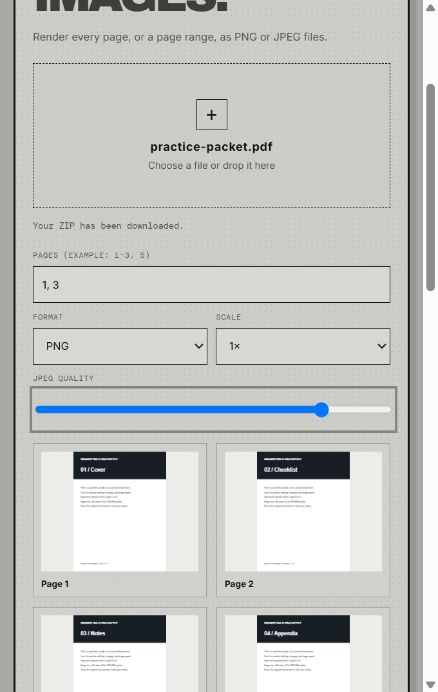
Input: the original practice-packet.pdf. Open PDF to Images, enter 1, 3 in Pages, choose PNG and 1× scale, then select Download ZIP. Expected output: practice-packet-images.zip with page-001.png and page-003.png. Each image should be 612 × 792 pixels; their headings should be Cover and Notes.
The screenshot shows the selected page range and all four source previews. Seeing four previews does not mean four files will be exported: the Pages field controls the output. At 2×, the same pages become 1224 × 1584 pixels, four times as many pixels per page. Use the smaller setting first if your browser runs out of memory.
Limitation: this renders whole pages. It does not extract the original photos embedded inside a PDF and does not keep text selectable in the PNG. Invalid page numbers can be excluded, so verify the ZIP contents rather than assuming every number you typed was accepted. For 'No valid pages were selected', use 1, 3 with this four-page sample; for a format error, use commas and ordinary hyphens, not words such as 'to'.
RESIZE AN IMAGE WITHOUT SQUASHING IT
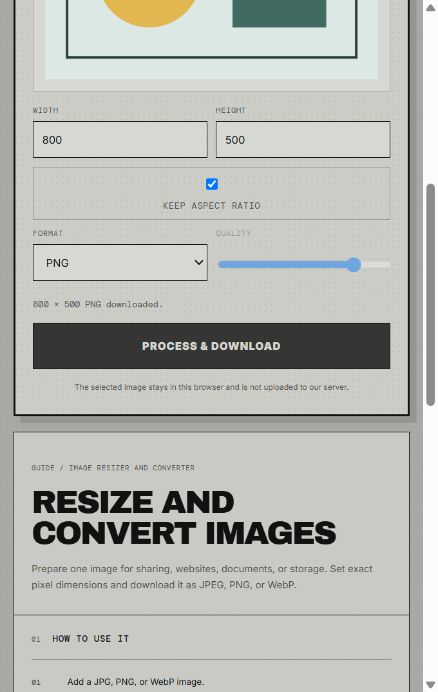
Input: resize-practice.png, 1600 × 1000 pixels. Open Image Toolkit, leave Keep aspect ratio checked, enter 800 for Width, and choose PNG. Height should change to 500 automatically. Select Process & Download. Expected filename: resize-practice-800x500.png. Open the downloaded file and confirm that the circle remains round.
The screenshot shows the 800 × 500 settings and the tool's download confirmation. The source preview is not a pixel-for-pixel preview of the exported image; inspect the downloaded result at its actual size. If you instead need an exact 800 × 800 square, turning off the ratio lock would stretch this sample. Use a cropping workflow when you need a different shape without distortion.
Limitation: this tool resizes; it does not reconstruct missing detail when enlarging an image. It accepts JPG, PNG, and WebP, with an intended maximum of 12,000 pixels per dimension; available memory can impose a lower practical limit. JPEG replaces transparency with white. PNG ignores the lossy quality setting, so lower dimensions or try JPEG/WebP if the file is too large. No setting guarantees a particular byte size: check the downloaded file against your form's limit.
TURN IMAGES INTO A TWO-PAGE PDF
Input: page-001.png and page-003.png from the PDF-to-images example. Extract them from the ZIP, open Images to PDF, and add both images. Use the arrow controls to place Cover before Notes. Choose US Letter and a small margin, then create the PDF. Expected result: images.pdf with two portrait pages in that order.
Reopen the PDF and check that no edges or labels are missing. If the order is wrong, change the image cards rather than relying on the order in the file picker. A standard page size fits the image inside the page, so a white border can be expected when image proportions and paper proportions differ.
Limitation: this creates image-based pages. It does not turn the pictured words back into searchable text. Combining exported page images is therefore not a substitute for PDF Merge when you want to preserve the original text layer. If creation fails, retry with fewer or smaller images; changing the filename extension alone does not convert an unsupported image format.
CHECK A KNOWN SHA-256 RESULT
Input: the downloadable abc.txt file above. Open File Hash, select the file, and keep SHA-256 selected. The expected result is the 64-character value below. Compare the whole value, not only its beginning or ending. This sample makes it possible to check the workflow without trusting a checksum copied from an unknown download site.
If your result differs, download the supplied file again. Typing abc into an editor and saving it can add a newline or a byte-order mark, producing different bytes and therefore a different hash. Renaming the same unchanged file does not change its content hash. Also check that you did not select SHA-384 or SHA-512.
Limitation: matching a checksum is not a malware scan and does not establish that the source is trustworthy. For a real download, compare against the publisher's trusted reference for the exact release and filename. The tool reads the entire file into browser memory; a very large file may fail even if this three-byte example works. If copying is blocked, use the tool's text-selection fallback and your browser's copy command.
ba7816bf8f01cfea414140de5dae2223b00361a396177a9cb410ff61f20015ad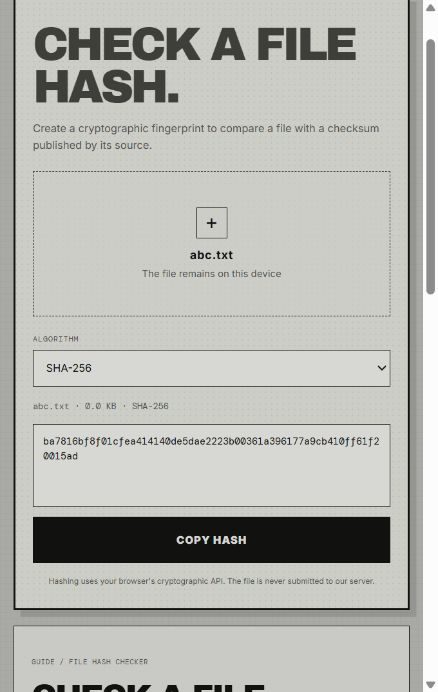
WHEN YOUR FILE FAILS BUT THE SAMPLE WORKS
Change one thing at a time. Try a smaller page range, a lower rendering scale, or fewer images. Close other memory-heavy tabs and retry with a copy. A PDF that opens but renders incorrectly is a different problem from one that cannot be parsed at all; note the exact stage and message before changing the file.
When reporting a problem, include the tool name, browser and device, file type and approximate size, selected settings, and the visible error. Say whether the sample succeeds. Do not send private documents by default; a small synthetic file that reproduces the issue is safer and usually easier to diagnose. These examples describe specific inputs, not a compatibility guarantee for every file or browser.
WHAT WAS CHECKED
The split, merge, page-image export and images-to-PDF sample workflows were checked locally on September 17, 2026, including their downloaded files. On September 30, automated tests exercised the actual organizer export function with Notes rotated 90 degrees followed by Cover, and a one-page selected extraction. The annotation export functions were tested for adding a highlight and note, editing the saved note data and deleting an annotation after save/reload.
The organizer and annotation outputs were also rendered for inspection. These checks do not cover every browser interaction, password-protected file, digital signature, form, annotation appearance stream or external reader. A viewer may display the same annotation differently. Keep the original and check the output in the reader you intend to use.